
Schedule templates allow users to choose between available campaign layouts or create their own. With schedule templates, you can create campaigns that as many months as you like, but with a maximum of 50 posts.
To access this feature, head to Settings > Schedule templates.
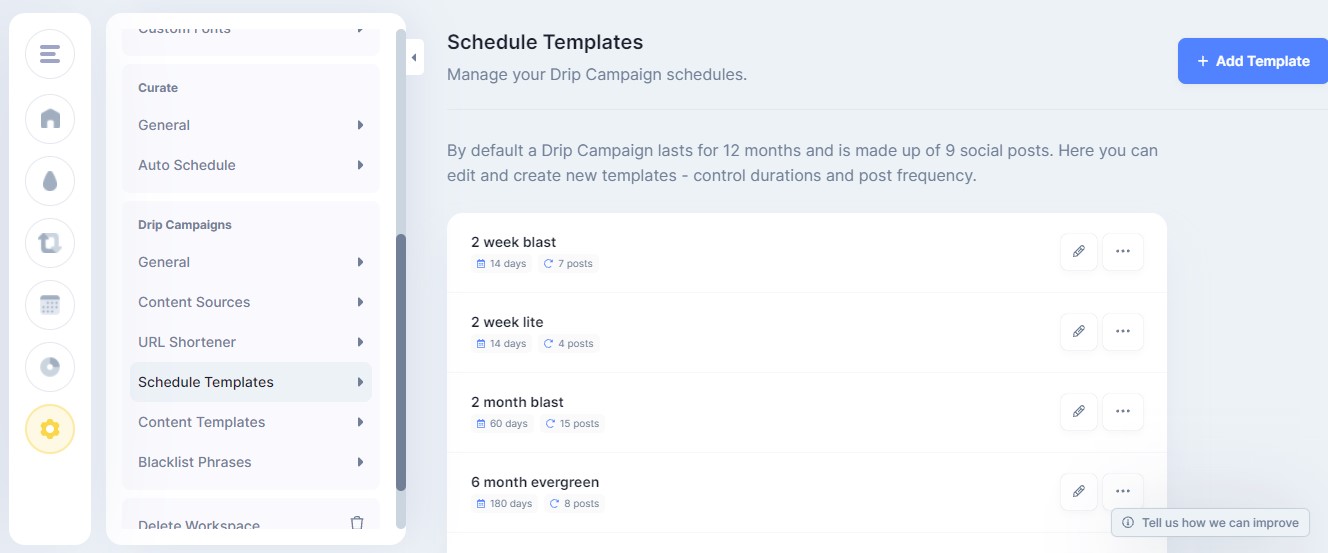
There are 5 available schedule templates:
- 12-month evergreen (the default campaign)
- 6-month evergreen
- 2-month blast
- 2-week blast
- 2-week lite
Using, editing existing, and creating your own schedule templates is available to users on the Pro, Business and Team plans.
To create a new schedule template click the "+ Add Template" on top right of the page.
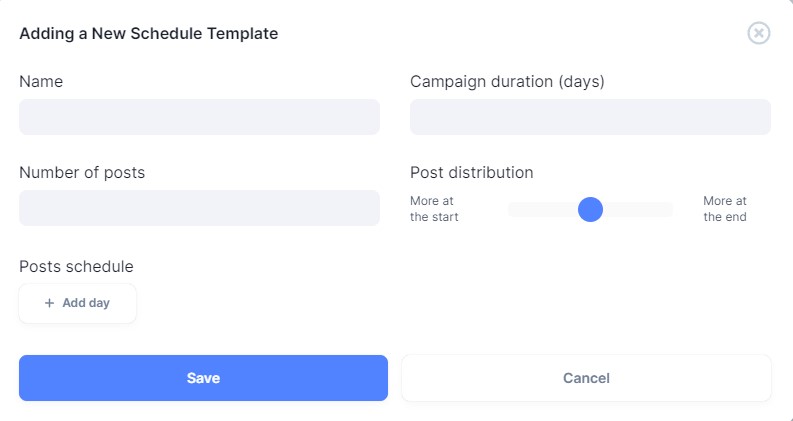
You are free to fine-tune a schedule template to your exact needs. Just make sure that the campaign duration is longer than the number of posts. A campaign can run for a maximum of 2 years — 730 days and have up to 50 posts per social profile connected.
The post distribution slider allows you to concentrate more posts at the beginning or end of the campaign, or keep the posts evenly balanced.
The bottom section allows you to change, add, and remove posts. Once you are done customizing use the "Save" button at the bottom of the page. You can make any schedule template the default one by clicking on the three dots to the right of the template, then selecting "Make default".
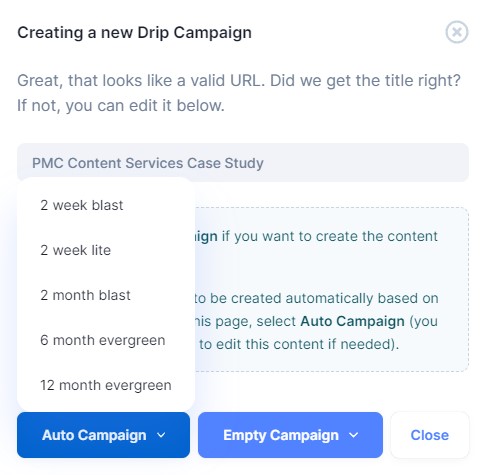
Whenever you create an automatic campaign, you can choose which schedule template you would like to use.
You can also do that when manually creating a campaign:
Any updates made to schedule templates are applied to campaigns created from that moment on. Applying changes to created campaigns requires campaign regeneration.
Next: Set up Time slots for your posts
Further Reading